> ## Documentation Index
> Fetch the complete documentation index at: https://docs.agntix.ai/llms.txt
> Use this file to discover all available pages before exploring further.
# Chat with RAG
> Ground an agent's answers in your own documents using an Agntix Knowledge Store.
A **Knowledge Store** is a vector-indexed collection of your documents (PDFs, DOCX, CSV, or scraped websites). Once you attach a store to an agent, every user message triggers a retrieval pass — the most relevant chunks are pulled into the prompt and the agent answers from them, with citations. This guide walks you through creating a store, uploading content, and wiring it to an agent — entirely from the dashboard.
## Prerequisites
* A signed-in dashboard account at [app.agntix.ai](https://app.agntix.ai).
* An existing agent (see [Build your first agent](/guides/build-your-first-agent)). You'll attach the store to it in Step 4.
* The files you want to index (PDF, DOCX, or CSV), or a list of public URLs to scrape.
## Step 1: Open the Knowledge Store page
From the left navigation, click **Knowledge Store**. You'll land on a two-column layout — list of stores on the left, details for the selected store on the right.
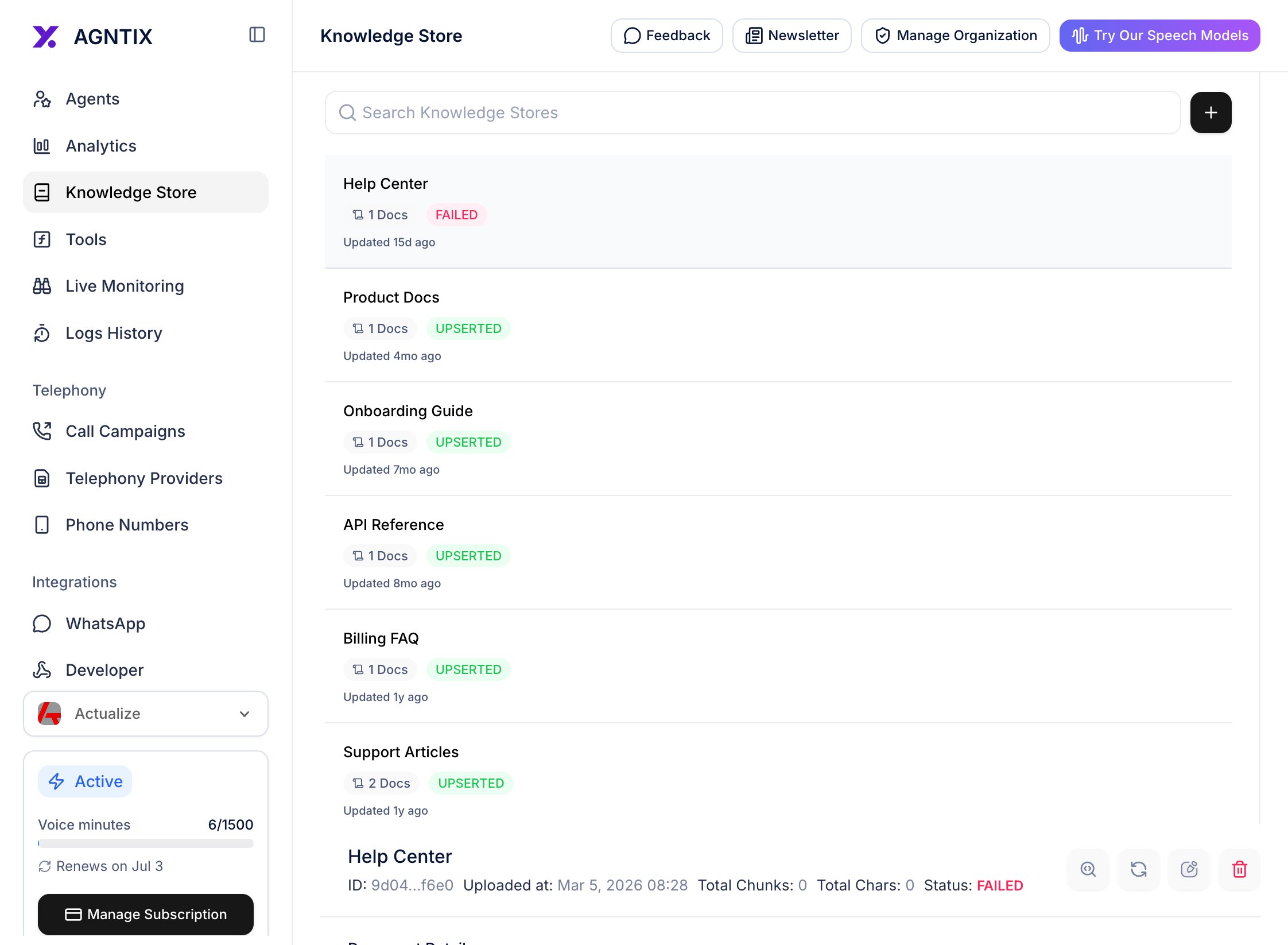 Click the **+** button at the top of the left panel.
## Step 2: Create the store
A modal opens with a single required field — **Name**. Give the store a descriptive name (8–50 characters). Examples: *Help Center*, *Product Docs FY26*, *Onboarding playbook*.
Click the **+** button at the top of the left panel.
## Step 2: Create the store
A modal opens with a single required field — **Name**. Give the store a descriptive name (8–50 characters). Examples: *Help Center*, *Product Docs FY26*, *Onboarding playbook*.
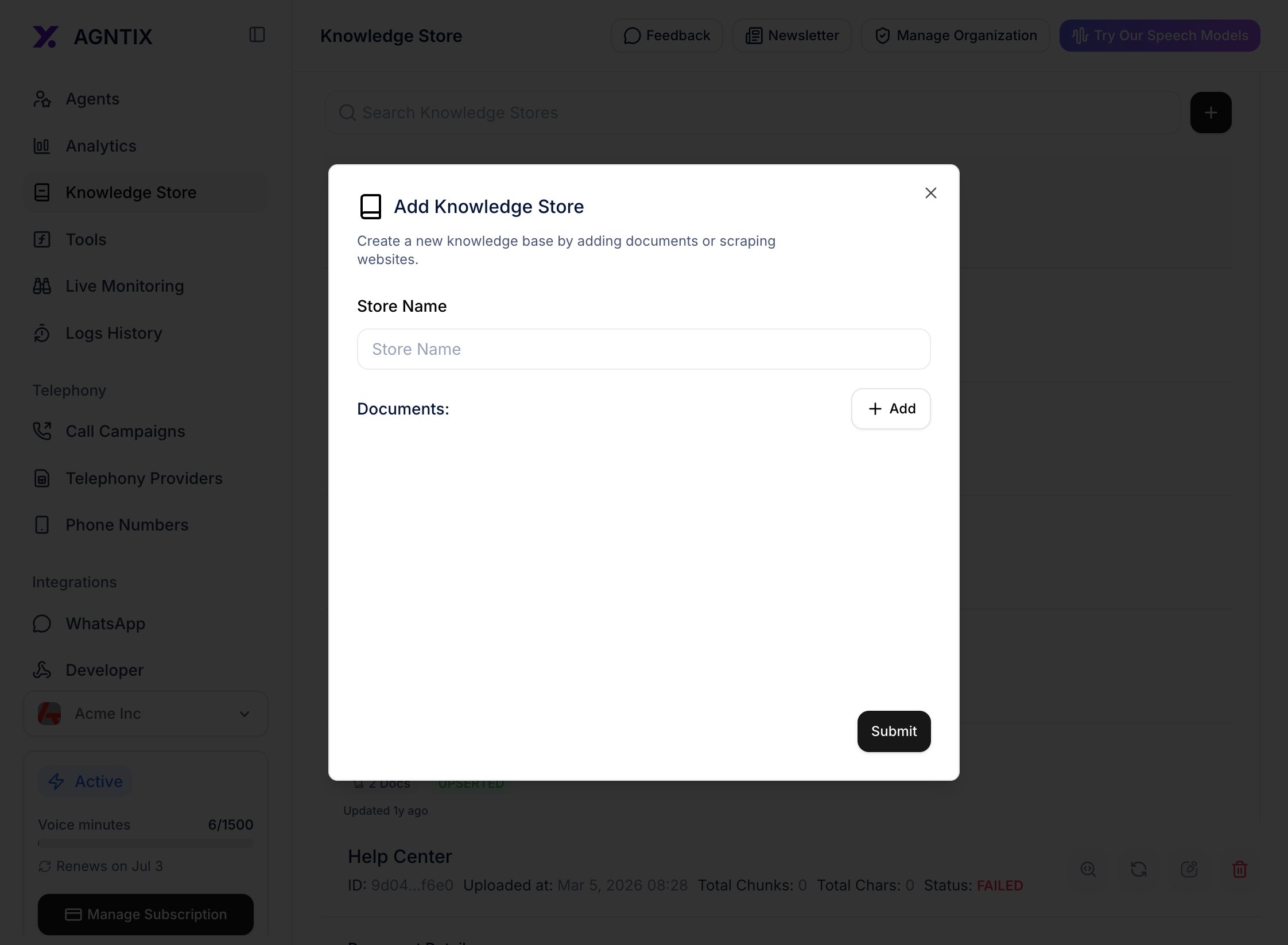 Keep stores **narrow**. Retrieval quality is much higher with one store per topic than one giant store containing everything your company has ever written. You can attach different stores to different agents.
Click **Create**. The new store appears in the left panel; select it to open the detail view.
## Step 3: Upload documents
In the store detail view, click the **Add** dropdown in the top right. Two sources are supported:
* **Upload file** — PDF, DOCX, CSV (multiple files allowed in one upload).
* **Add website** — scrape a single URL or a list of URLs.
Keep stores **narrow**. Retrieval quality is much higher with one store per topic than one giant store containing everything your company has ever written. You can attach different stores to different agents.
Click **Create**. The new store appears in the left panel; select it to open the detail view.
## Step 3: Upload documents
In the store detail view, click the **Add** dropdown in the top right. Two sources are supported:
* **Upload file** — PDF, DOCX, CSV (multiple files allowed in one upload).
* **Add website** — scrape a single URL or a list of URLs.
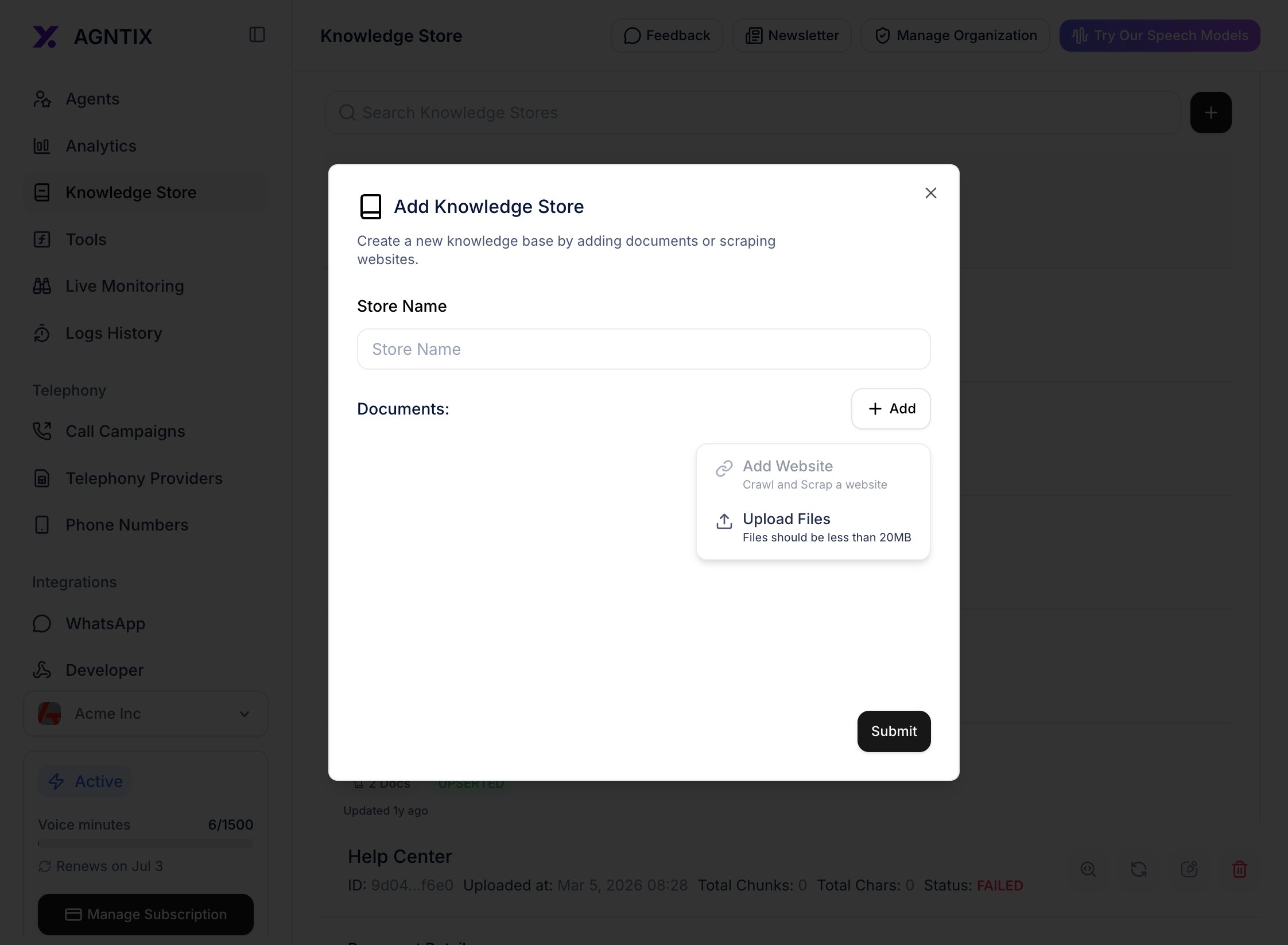 Select **Upload file** and pick one or more documents. Each file is queued and processed asynchronously:
1. **Uploading** — bytes transfer to the gateway.
2. **Processing** — Agntix chunks the document (\~1k tokens per chunk), embeds it (Cohere by default), and writes vectors to Qdrant.
3. **Ready** — the document is searchable.
Select **Upload file** and pick one or more documents. Each file is queued and processed asynchronously:
1. **Uploading** — bytes transfer to the gateway.
2. **Processing** — Agntix chunks the document (\~1k tokens per chunk), embeds it (Cohere by default), and writes vectors to Qdrant.
3. **Ready** — the document is searchable.
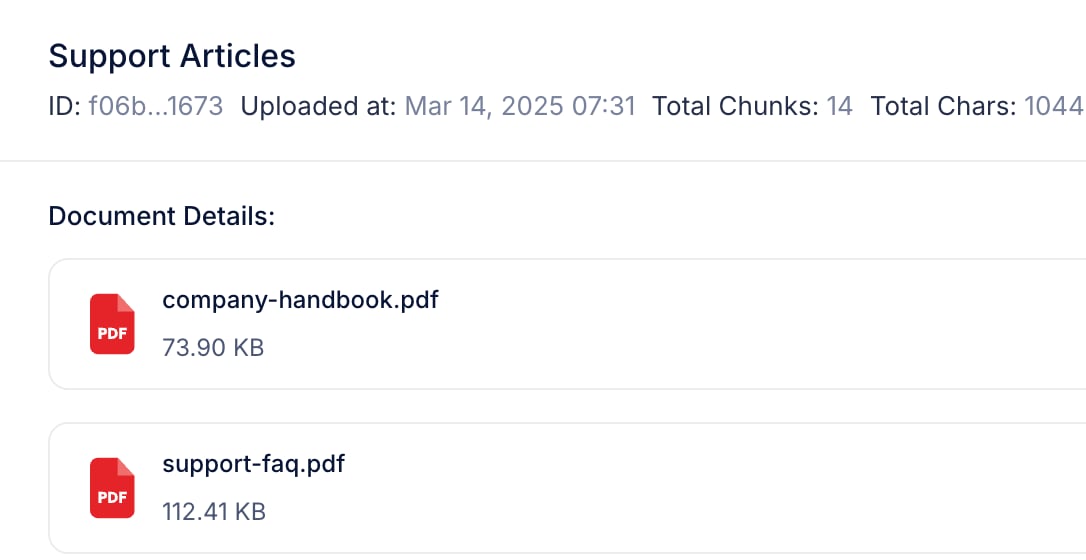
 Wait for every document to reach **Ready** before testing. Processing time scales with document size (typical: 1–2 seconds per page).
 ## Step 4: Attach the store to an agent
Attaching a knowledge store **from the dashboard is not available in the current release** — the agent's in-dashboard **Knowledge** tab is temporarily disabled while it's being finalized. For now, attach the store over the API as shown below; the dashboard flow will return in a future release.
Copy the store's ID from the Knowledge Store detail view (or from the create-store API response), then `PATCH` your agent to enable RAG and point it at the store:
```bash theme={null}
curl -X PATCH https://api.agntix.ai/v1/chat/agents/$AGENT_ID \
-H "x-api-key: $AGNTIX_API_KEY" \
-H "Content-Type: application/json" \
-d '{ "config": { "ragEnabled": true, "knowledgeStoreId": "ks_…" } }'
```
Retrieval behaviour — search type, **Top K** / **Top N**, **Agentic RAG**, and **Rerank** — defaults to sensible values. To tune it, set the matching `config` fields; see the **Agents** section of the [API Reference](/api-reference/agents/update) for the exact field names and ranges.
## Step 5: Test with a RAG-grounded question
Click **Test Agent** in the page header. Ask a question whose answer is in your uploaded documents — something specific enough that a generic LLM wouldn't know it.
## Step 4: Attach the store to an agent
Attaching a knowledge store **from the dashboard is not available in the current release** — the agent's in-dashboard **Knowledge** tab is temporarily disabled while it's being finalized. For now, attach the store over the API as shown below; the dashboard flow will return in a future release.
Copy the store's ID from the Knowledge Store detail view (or from the create-store API response), then `PATCH` your agent to enable RAG and point it at the store:
```bash theme={null}
curl -X PATCH https://api.agntix.ai/v1/chat/agents/$AGENT_ID \
-H "x-api-key: $AGNTIX_API_KEY" \
-H "Content-Type: application/json" \
-d '{ "config": { "ragEnabled": true, "knowledgeStoreId": "ks_…" } }'
```
Retrieval behaviour — search type, **Top K** / **Top N**, **Agentic RAG**, and **Rerank** — defaults to sensible values. To tune it, set the matching `config` fields; see the **Agents** section of the [API Reference](/api-reference/agents/update) for the exact field names and ranges.
## Step 5: Test with a RAG-grounded question
Click **Test Agent** in the page header. Ask a question whose answer is in your uploaded documents — something specific enough that a generic LLM wouldn't know it.
 Compare against the same question with the store *detached* — the difference should be obvious. If the agent ignores the store, see [Troubleshooting](#troubleshooting) below.
## Verify it works
* Every uploaded document shows **Ready** in the store detail view.
* The agent's `config` shows `ragEnabled: true` with your `knowledgeStoreId` (check via `GET /v1/chat/agents/{id}`).
* Test Agent answers contain facts that are only in your documents.
* The session log (Analytics tab or `/logs-history`) shows the retrieved chunks per message.
## Best practices
Narrow stores out-perform giant stores. Split by product, region, or audience.
Re-upload changed documents. Old chunks are replaced atomically, no downtime.
Cohere reranking adds \~150 ms but cuts hallucinations dramatically.
Tell the agent to cite chunk titles. Builds user trust and makes wrong answers easy to debug.
## Troubleshooting
| Symptom | Likely cause | Fix |
| ----------------------------- | -------------------------------------------------------------- | --------------------------------------------------------------------------------------------------- |
| Agent ignores the store | Document still **Processing**, or RAG not enabled on the agent | Wait for **Ready**; confirm the agent's `config.ragEnabled` is `true` and `knowledgeStoreId` is set |
| Wrong document retrieved | **Top K** too low, or two stores overlap | Raise Top K to 8–10, or split overlapping content |
| Slow responses | Rerank + Agentic RAG both on | Turn off Agentic RAG first; keep rerank |
| "Quota exceeded" upload error | Org embedding quota | Contact support; quotas are per-plan |
## API alternative
Same flow over HTTP — useful for CI / bulk ingestion / nightly refreshes:
```bash theme={null}
curl -X POST https://api.agntix.ai/v1/chat/knowledge-store \
-H "x-api-key: $AGNTIX_API_KEY" \
-H "Content-Type: application/json" \
-d '{ "name": "Help Center", "description": "Customer-facing help center articles" }'
curl -X PATCH https://api.agntix.ai/v1/chat/agents/$AGENT_ID \
-H "x-api-key: $AGNTIX_API_KEY" \
-H "Content-Type: application/json" \
-d '{ "config": { "ragEnabled": true, "knowledgeStoreId": "ks_…" } }'
```
For the full upload, document-listing, and chunk-level endpoints, see the auto-generated **Knowledge Store** section under [API Reference](/api-reference/introduction).
Compare against the same question with the store *detached* — the difference should be obvious. If the agent ignores the store, see [Troubleshooting](#troubleshooting) below.
## Verify it works
* Every uploaded document shows **Ready** in the store detail view.
* The agent's `config` shows `ragEnabled: true` with your `knowledgeStoreId` (check via `GET /v1/chat/agents/{id}`).
* Test Agent answers contain facts that are only in your documents.
* The session log (Analytics tab or `/logs-history`) shows the retrieved chunks per message.
## Best practices
Narrow stores out-perform giant stores. Split by product, region, or audience.
Re-upload changed documents. Old chunks are replaced atomically, no downtime.
Cohere reranking adds \~150 ms but cuts hallucinations dramatically.
Tell the agent to cite chunk titles. Builds user trust and makes wrong answers easy to debug.
## Troubleshooting
| Symptom | Likely cause | Fix |
| ----------------------------- | -------------------------------------------------------------- | --------------------------------------------------------------------------------------------------- |
| Agent ignores the store | Document still **Processing**, or RAG not enabled on the agent | Wait for **Ready**; confirm the agent's `config.ragEnabled` is `true` and `knowledgeStoreId` is set |
| Wrong document retrieved | **Top K** too low, or two stores overlap | Raise Top K to 8–10, or split overlapping content |
| Slow responses | Rerank + Agentic RAG both on | Turn off Agentic RAG first; keep rerank |
| "Quota exceeded" upload error | Org embedding quota | Contact support; quotas are per-plan |
## API alternative
Same flow over HTTP — useful for CI / bulk ingestion / nightly refreshes:
```bash theme={null}
curl -X POST https://api.agntix.ai/v1/chat/knowledge-store \
-H "x-api-key: $AGNTIX_API_KEY" \
-H "Content-Type: application/json" \
-d '{ "name": "Help Center", "description": "Customer-facing help center articles" }'
curl -X PATCH https://api.agntix.ai/v1/chat/agents/$AGENT_ID \
-H "x-api-key: $AGNTIX_API_KEY" \
-H "Content-Type: application/json" \
-d '{ "config": { "ragEnabled": true, "knowledgeStoreId": "ks_…" } }'
```
For the full upload, document-listing, and chunk-level endpoints, see the auto-generated **Knowledge Store** section under [API Reference](/api-reference/introduction).